
- Getting Started with Ultimate Addons for Elementor
- Getting Started with Ultimate Addons for Elementor Pro
- How To Install The Ultimate Addons For Elementor Pro Plugin?
- How to Get License Key of Ultimate Addons for Elementor?
- Activate Ultimate Addons for Elementor Pro License
- How Can I Upgrade the License?
- How to Update Ultimate Addons for Elementor Plugin?
- How to update any plugin manually through FTP?
- About Beta Versions
- About Beta Versions
- How to Enable / Disable Widgets in UAE to Reduce Server Requests?
- How to White Label UAE?
- Getting Started with Ultimate Addons for Elementor Pro
- UAE Saved Sections
- How to create Google API key in Google Maps Widget of UAE?
- White Screen /500 Error After Plugin Installation
- How to Increase the Memory Limit of your site?
- Unable to see the Font Awesome 5 Icons in UAE’s widgets?
- Introducing User Registration Form Widget
- How to Create a User Registration Form using Elementor?
- How to Create a User Registration Form with Only Email Field in Elementor?
- Frequently Asked Questions about User Registration Forms
- Google reCAPTCHA v3 in User Registration Form for Elementor
- Honeypot field in User Registration Form for Elementor
- Filters/Actions for User Registration Form Widget
- How to Integrate hCaptcha with UAE Login & Registration Forms
- How to Create a Facebook App ID for Login Form Widget?
- How to Create a Google Client ID for Login Form Widget?
- Introducing a New Login Form Widget for Elementor
- Filters/Actions for Login Form Widget
- Google reCAPTCHA v3 in Login Form for Elementor
- How to Integrate hCaptcha with UAE Login & Registration Forms
- How to Open a Modal Popup on the Click of an Elementor Widget?
- Modal Popup Widget
- How to Trigger a Modal Popup on the Click of a Menu Element?
- How To Close a Modal Popup on the Click of a Button or Text?
- How to Insert a Video in the UAE Modal Popup?
- What are the Various Options to Close a Modal Popup in UAE?
- How to Display a Modal Popup on Exit Intent?
- Modal Popup JS Triggers
- Woo – Products Widget
- How to display exact WooCommerce product with Query Builder?
- How to set Grid and Carousel layout for WooCommerce products?
- Filters/Actions for WooCommerce Products
- How to enable Quick View for WooCommerce Products?
- How to Exclude WooCommerce Products with Woo-Products Widget?
- How to Set Featured Products in WooCommerce?
- Woo – Products Carousel Does Not Display Correctly?
- How to Display Related Products with Woo-Products Widget?
- How To Add Rows And Columns to the Table?
- Table Widget
- How to add Table Header with Table Widget?
- How to add Table Content with Table Widget?
- How to add Sortable and Searchable Table? How to Show Entries Dropdown?
- How to Merge Columns and Rows in Table?
- How to Style the Table?
- Create Table by Uploading CSV
- Facing Issues with CSV Import?
- Image Gallery Widget
- How to Set Categories for Images?
- How to Add an Image Caption
- How to Set a Custom Link for the Image?
- How to Design Filterable Image Gallery?
- How to Open a Webpage with the Click of an Image?
- How to Set Scale, Opacity, Effects, Overlay Color for Images?
- How to Display Specific Category Tab as a Default on Page Load?
- How to Set Icon on Image Hover?
- Video Gallery Widget
- How to Set Categories for Videos?
- How to Design Filterable Video Gallery?
- How to Display Specific Video Category Tab as a Default on Page Load?
- How to Set a Custom Placeholder Image for the Video?
- How to Set Overlay Color on the Video Thumbnail on Mouse Hover?
- How to Show Video Caption on Hover?
- How to Show Video Category on Hover?
- Bulk Editing for Video Category Names
- How to Style Particular Item / Icon?
- Timeline Widget
- How to Change the Vertical Position of Arrow & Icon?
- How to Set On-Scroll Color for Connector Line and Icon?
- How to Set the Alternate Alignment for the Card Content?
- How to Manage Timeline on Responsive View?
- How Query Builder Works for Post Timeline?
- How to Set Post as Sticky?
- Enable Infinite Load Pagination for Post Timeline
- Posts Widget
- How Query Builder Works for Posts Widget?
- How to Enable Infinite Load Pagination for Posts?
- Filters/Actions for Posts Widget
- Filterable Tabs for Posts Widget
- Layouts for Posts Widget
- Posts Widget Carousel Does Not Display Correctly?
- Displaying Portfolios in UAE Post Widget Using Custom Filters
Use UAE AI Tools with Angie (In-Editor)
Angie is Elementor’s built-in AI assistant. When UAE AI Tools is enabled alongside the Angie plugin, UAE’s abilities are available inside the Elementor editor, so you can build and edit pages with natural language while you design, without leaving the browser or configuring any external client.
Before you start: Make sure you have completed Step 1: Enable AI Tools in the main UAE AI Tools guide.
Requirements
- The Angie plugin installed and active on your WordPress site
- UAE AI Tools enabled (UAE → Settings → AI Tools → Enable AI Tools)
No Application Password, Node.js, or config file is needed for Angie.
Step 1: Install and Activate the Angie Plugin
If you haven’t already, install the Angie plugin from your WordPress admin (Plugins → Add New) and activate it.
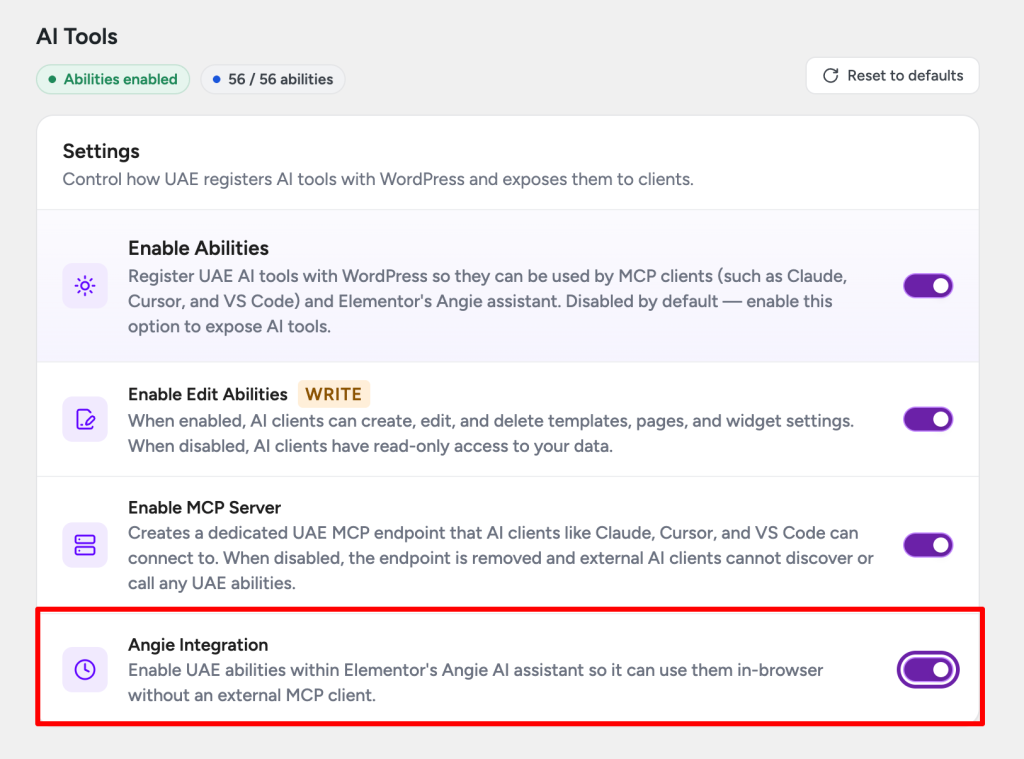
Step 2: Enable Angie Integration in UAE
- Go to UAE → Settings → AI Tools.
- Confirm Enable AI Tools is turned on.
- Turn on Angie Integration.
Step 3: Open the Elementor Editor
Open any page or template in the Elementor editor. UAE’s build and edit tools will now be available inside the Angie panel.
You can use natural language to:
- Create or modify headers, footers, and custom blocks
- Add, move, or remove widgets and sections
- Update display rules and extension settings
- Read your template structure and widget settings
What Angie Can and Cannot Do
Angie uses the same tool set and the same WordPress capability checks as the external MCP clients. The key differences:
| Angie (in-editor) | External MCP clients | |
|---|---|---|
| Where you work | Inside Elementor editor | Your AI app (Claude, Cursor, etc.) |
| Auth required | No, uses your logged-in WordPress session | Yes, Application Password |
| Scope | Tied to the page/template you have open | Can work across your whole site |
| Best for | Quick edits while designing | Bulk changes, automation, cross-site tasks |
The Allow Modifications setting still applies to Angie. If it is turned off, Angie is read-only.
Troubleshooting
Angie panel does not show UAE tools
- Confirm the Angie plugin is active (Plugins → Installed Plugins)
- Confirm both Enable AI Tools and Angie Integration are on in UAE settings
- Flush the Elementor cache (Elementor → Tools → Regenerate Files & Data) and reload the editor
Write tools are missing in Angie Turn on Allow Modifications on the UAE AI Tools settings page.
UAE tools appear but return errors Your WordPress user session may not have the required capabilities. Check the Capabilities & Permissions section in the Troubleshooting guide.
For more help, see the UAE AI Tools Troubleshooting guide or contact our support team.
We don't respond to the article feedback, we use it to improve our support content.